
Quotes are the items in Cronetic that contain the details of all your business' most important information.
A Quote Lead, for example, represents one person - they might be a prospective customer, an active customer, a dealer, a colleague, etc. Each record contains fields with detailed information like addresses, phone numbers, and more.
How to view a Quote
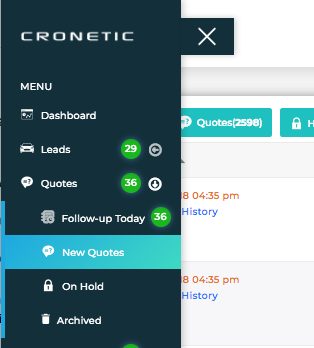
1. Click the object in the navigation menu. For this example, I'll select Quotes > Follow-up Today.
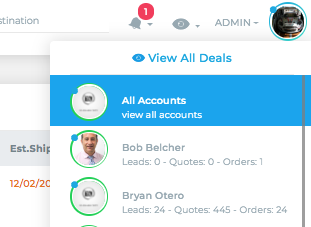
Note: User's with privileges to view other user's quotes, to view a specific agent's quotes or all, click on the eye icon (located on the top right of screen) and select your view preference.
2. Click on the Order ID
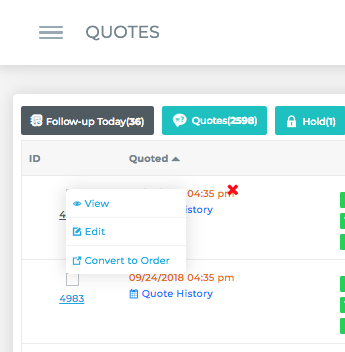
3. A menu will appear with the option to View, Edit or Convert the Quote to an Order.
View: Opens a details page of the quote
Edit: Opens a page that allows you to edit the details of the quote
Convert to Order: Opens a page that allows you to edit the details of the quote and convert to an Order
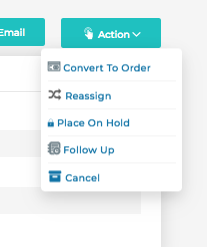
Actions Menu
The Actions menu is located in the upper right of a details page. Here you can perform actions such as converting to Order, reassigning, placing on hold, or sending/scheduling a follow up for the deal. Your options will vary for each object.
For more information about managing and editing leads, click here.
Comments
0 comments
Please sign in to leave a comment.