
Leads are the items in Cronetic that contain the details of all your business' most important information.
A New Lead, for example, represents one person - they might be a prospective customer, an active customer, a dealer, a colleague, etc. Each record contains fields with detailed information like addresses, phone numbers, and more.
How to view a lead
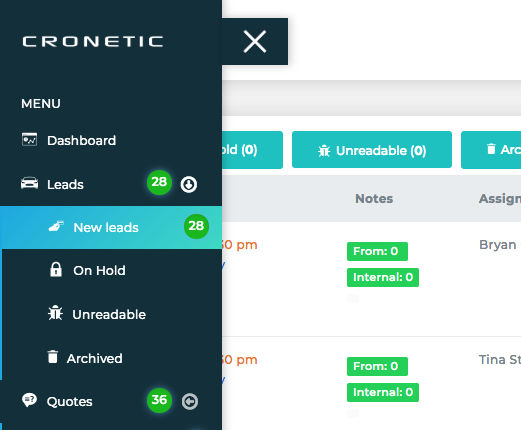
1. Click the object in the navigation menu. For this example, I'll select Leads > New Leads.
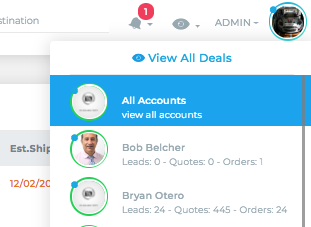
Note: User's with privileges to view other user's leads, to view a specific agent's leads or all, click on the eye icon (located on the top right of screen) and select your view preference.
2. You can quote each deal and convert to quote from the lead list page.

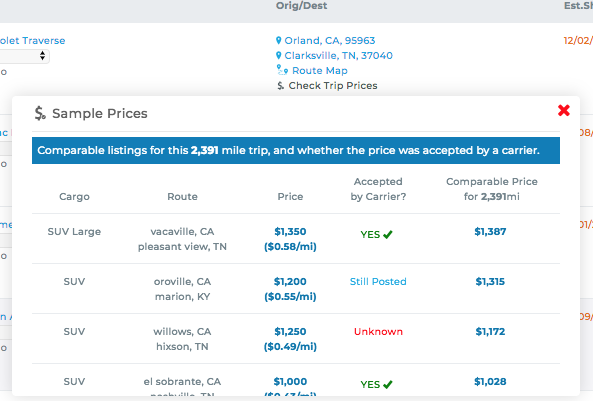
Note: By clicking Check Trip Prices (located under origin/destination) a pop up window will appear displaying sample prices
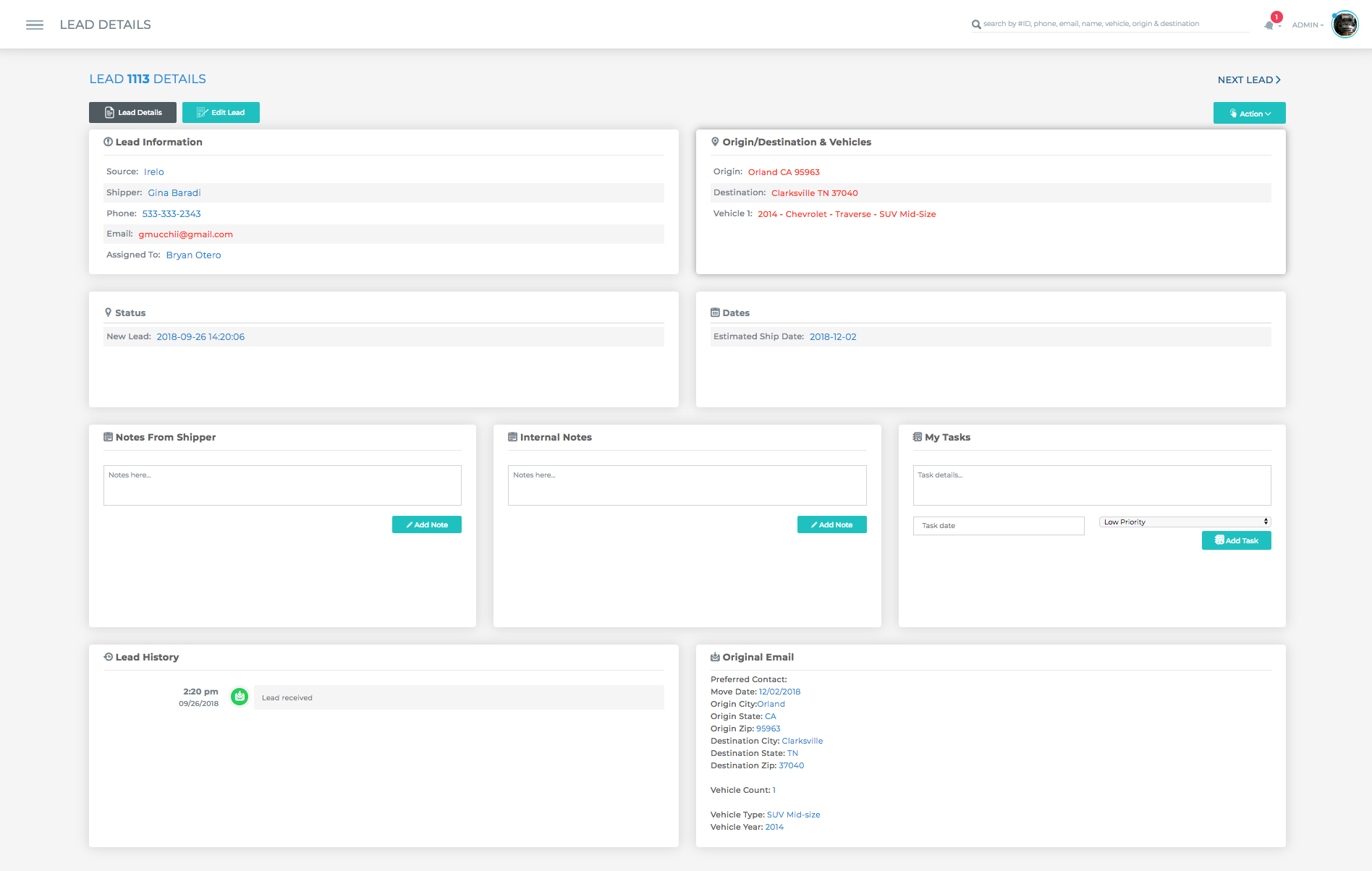
3. To view the details of a specific lead, click on the ID number and the lead details page containing all provided information will appear. To edit the details of the lead, click on Edit Lead
Actions Menu
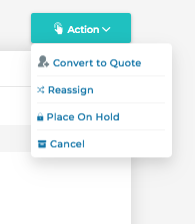
The Actions menu is located in the upper right of a details page. Here you can perform actions such as converting to quote, reassigning, cloning, or canceling the deal. Your options will vary for each object.
For more information about managing and editing leads, click here.
Comments
0 comments
Please sign in to leave a comment.