
Learning to navigate Cronetic is vital to having the best experience with your CRM. Don't worry, it's pretty simple.
Dashboard
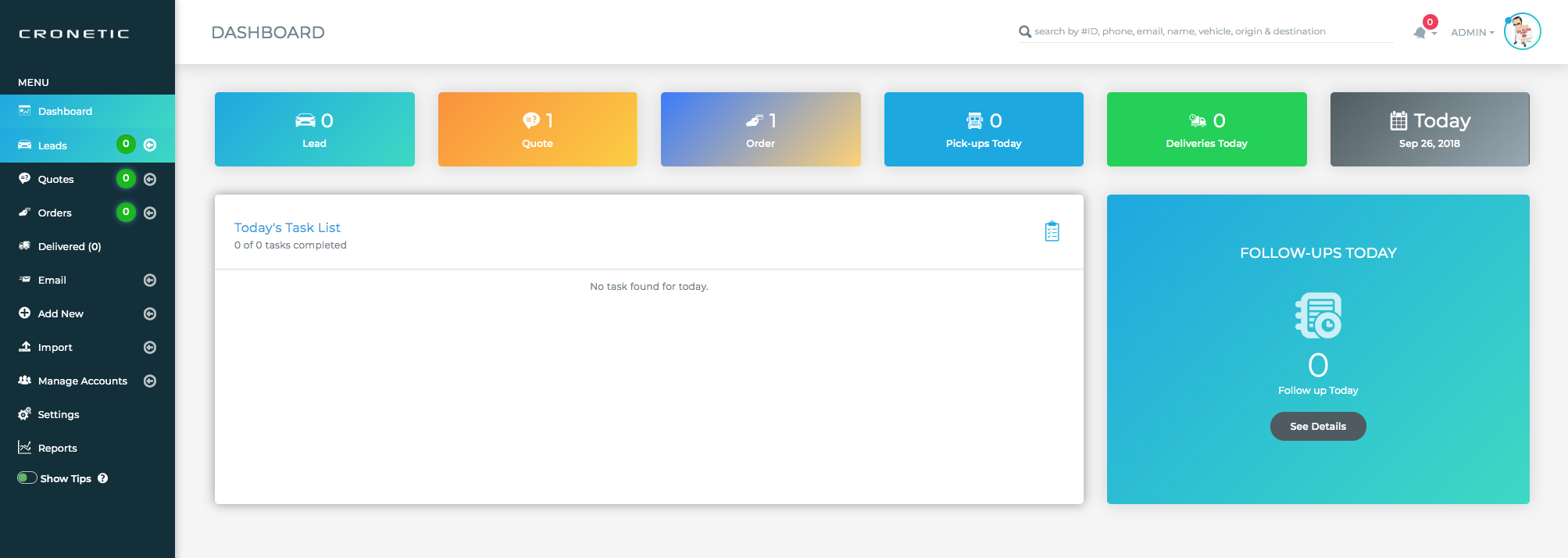
When you log into Cronetic, you'll see the Dashboard page. Here you can view a series of cards that use graphs and charts to display your Crronetic data. You can display any dashboard you have permission to view.
Navigation Bar
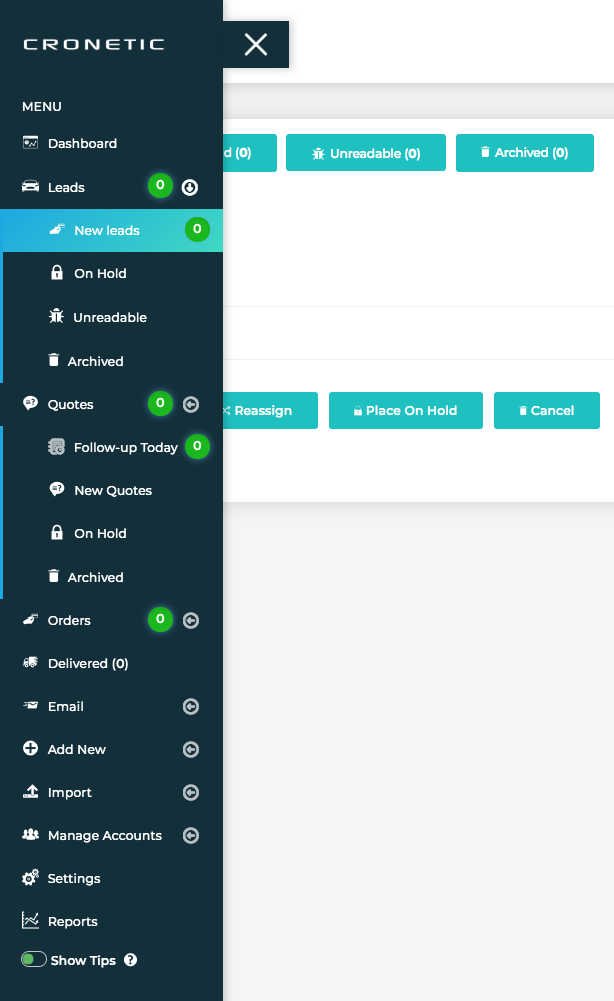
The navigation bar is located on the left side of your screen. Based on assigned privileges, you'll be able to access your leads, quotes, orders, reports, settings and dashboard screen from here.
Search Bar
The search bar is located in the top center of your screen. Use it to search through all of your records.

Profile Menu
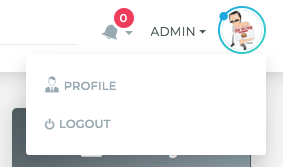
The profile menu is located in the upper right corner of your screen. Here's a quick overview of the options:
-
Profile: Here you will be able to adjust the settings of you individual profile such as blocked carriers and user details.
. - Log Out: Click here to exit your account.
Notifications
You can find your notifications by clicking Profile (found by clicking your avatar in the top right) > Notifications. These are updates for new leads, online reservations, carrier dispatches and successful payments.
Comments
0 comments
Please sign in to leave a comment.