
To edit convert a quote to order, you must first access the quote by one of the following options.
Option 1. Head to Menu > Quote > and select the status that the quote should be in. Next, click on the quote ID and select "Convert to Order"
Option 2. Utilizing the search bar, input the quote ID or the any details of the quote that your shipper can provide you should you be on a live call.
Note: If the shipper took it upon themselves to book online from the online booking link or portal login, the quote will automatically convert into an order. A notice will alert the agent and admin, and the order will be labeled "Unverified"
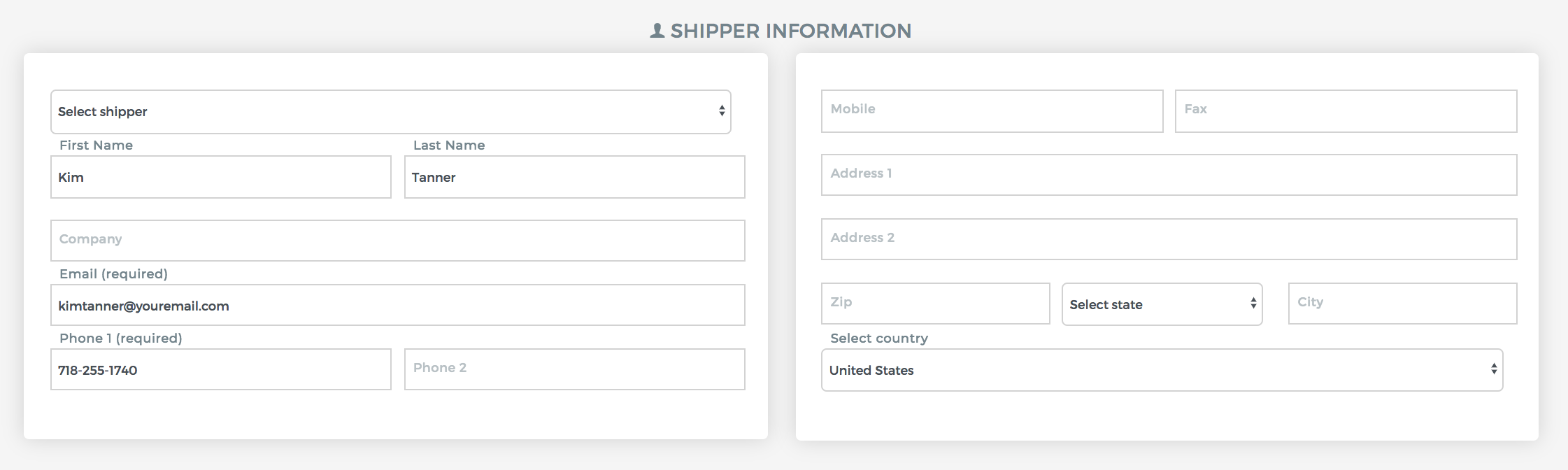
Shipper's Information
This section allows you to update the details of the shipper. You can save the company info, contact information and their main address.
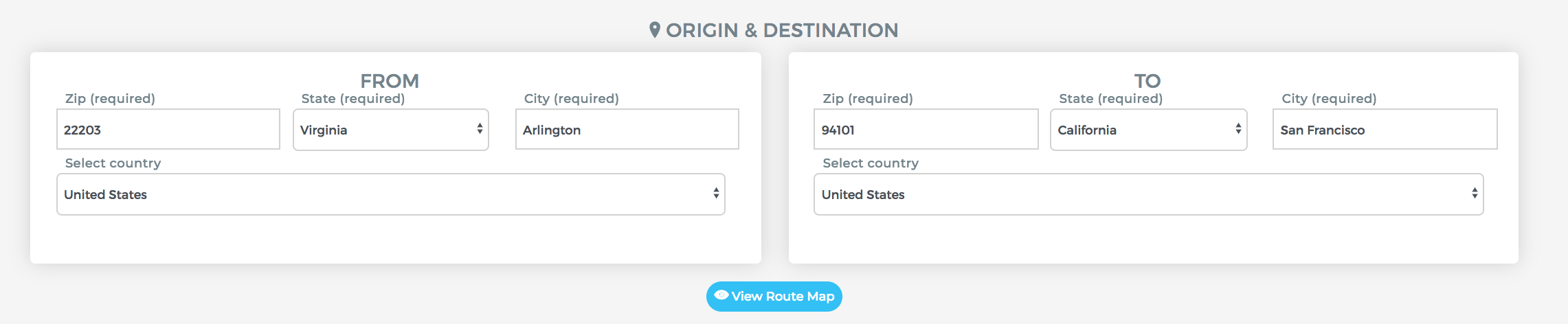
Origin and Destination
In the fields below, you can update the details of the transport request made by the shipper.
Shipping Information
Update the details of the load in the following fields. These fields are typically provided by the lead source, but it's a good practice to confirm the information before converting to a order and sourcing a carrier.

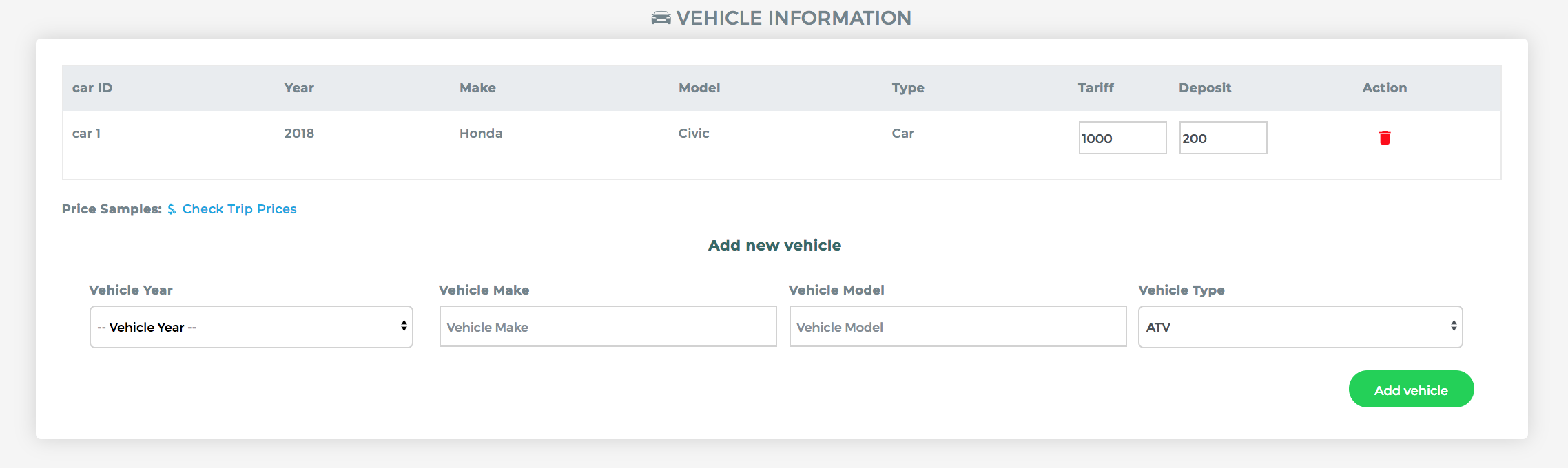
Vehicle(s) Information
In the following fields, you can update the Year, Make and Model of the vehicle.
Tariff - Total amount of the quote that includes the deposit and amount due to carrier.
Deposit - Amount required before dispatching load to the carrier.
To add more vehicles to the quote, select the specs of the vehicle in the fields below "Add new vehicle" then click "Add Vehicle". The new vehicle will show up with a new Car ID, where you then input the Tariff and required deposit for the new vehicle.
Pricing Information
This window is for carrier pricing and terms.
Carrier Pay - The amount due to the carrier
COD/COP Amount - The amount the carrier will receive on pickup or delivery
Balance Due - (Automatically calculated) Amount company owes carrier after receiving the BOL

Once you are done updating the details of this quote, you have the option to save and send an email to the shipper about the shipping details by clicking "Convert and Email Shipper" or just save the new order by clicking "Convert Only"
Note: Once a Quote has been converted into an Order, all links in previously sent emails that allow shipper to book online become invalid. A notice will appear explaining that the quote is no longer valid.
Comments
0 comments
Please sign in to leave a comment.