
To edit a quote, you must first access the quote by one of the following options.
1. Head to Menu > Quote > and select the status that the quote should be in. Next, click on the quote ID and select "Edit"
2. Head to Menu > Quote > and select the status that the quote should be in. Utilizing the search bar, input the quote ID or the any details of the quote that your shipper can provide you should you be on a live call.
Shipper's Information
This section allows you to update the details of the shipper. You can save the company info, contact information and their main address.

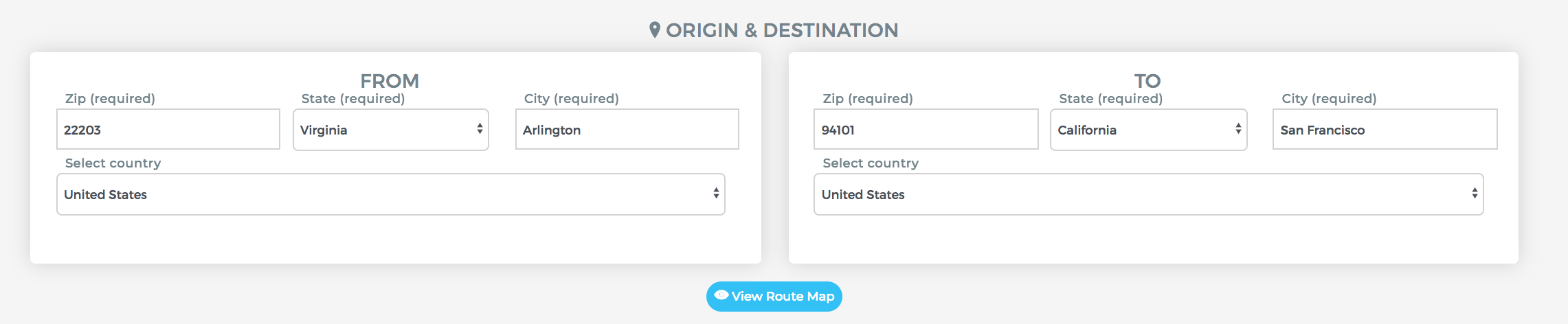
Origin and Destination
In the fields below, you can update the details of the transport request made by the shipper.
Shipping Information
Update the details of the load in the following fields. These fields are typically provided by the lead source, but it's a good practice to confirm the information before converting to a order and sourcing a carrier.

Vehicle(s) Information
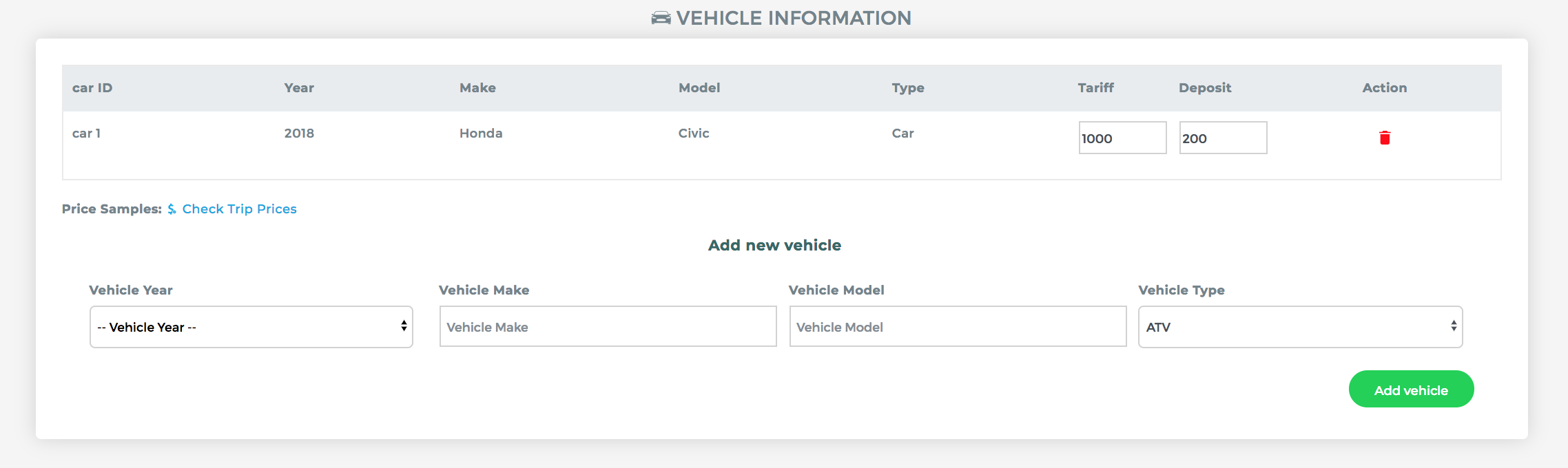
In the following fields, you can update the Year, Make and Model of the vehicle.
Tariff - Total amount of the quote that includes the deposit and amount due to carrier.
Deposit - Amount required before dispatching load to the carrier.
To add more vehicles to the quote, select the specs of the vehicle in the fields below "Add new vehicle" then click "Add Vehicle". The new vehicle will show up with a new Car ID, where you then input the Tariff and required deposit for the new vehicle.
Comments
0 comments
Please sign in to leave a comment.