
After creating a quote for your customer, you can send them a copy of the proposed quote in different ways using various channels.
The most common way is to send you a quote by email.
The first thing you're going to want to do is to open the Quote Details, Click the "Send Email" button
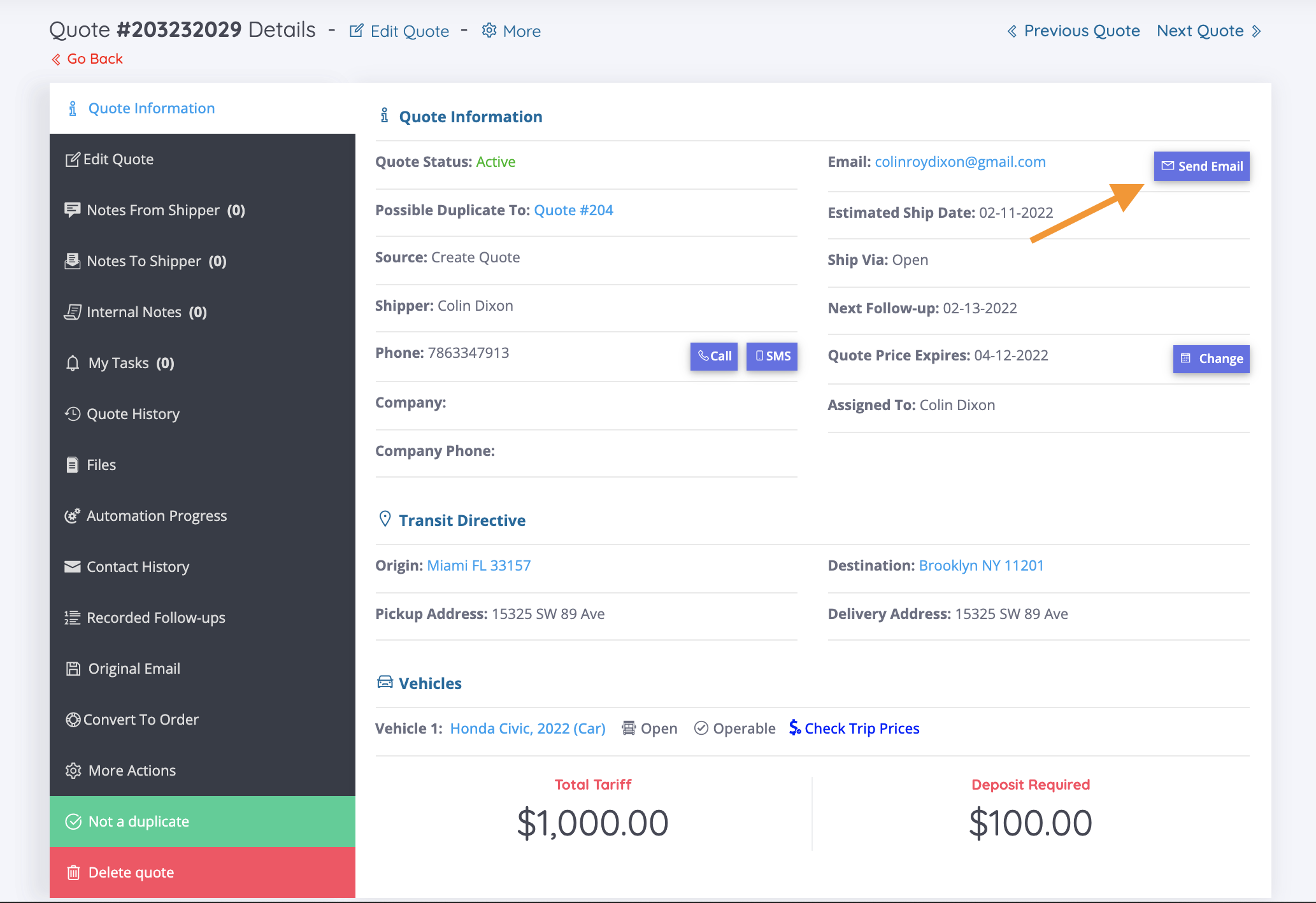
An Email Composure Card will appear... You can manually write in the details of the quote, or select a Preset template.
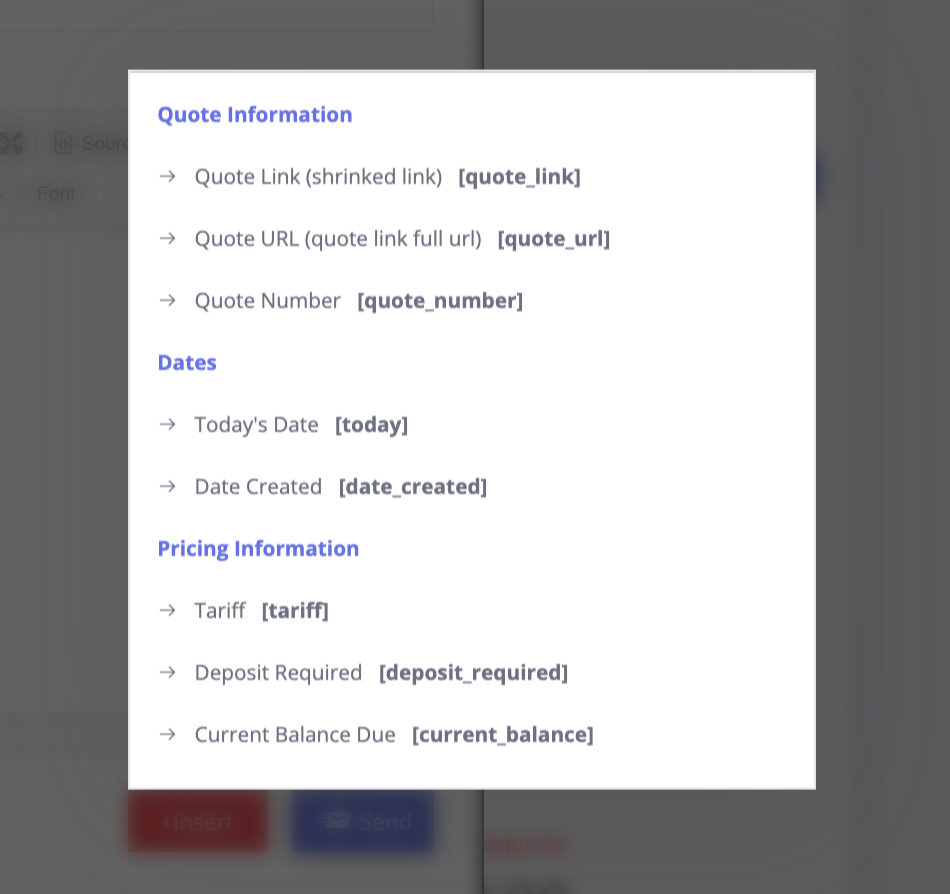
IF you need to compose an email that's is specific to a case, you can pre-fill details from the load into your email by clicking the button "Insert"
1.

2.
3.
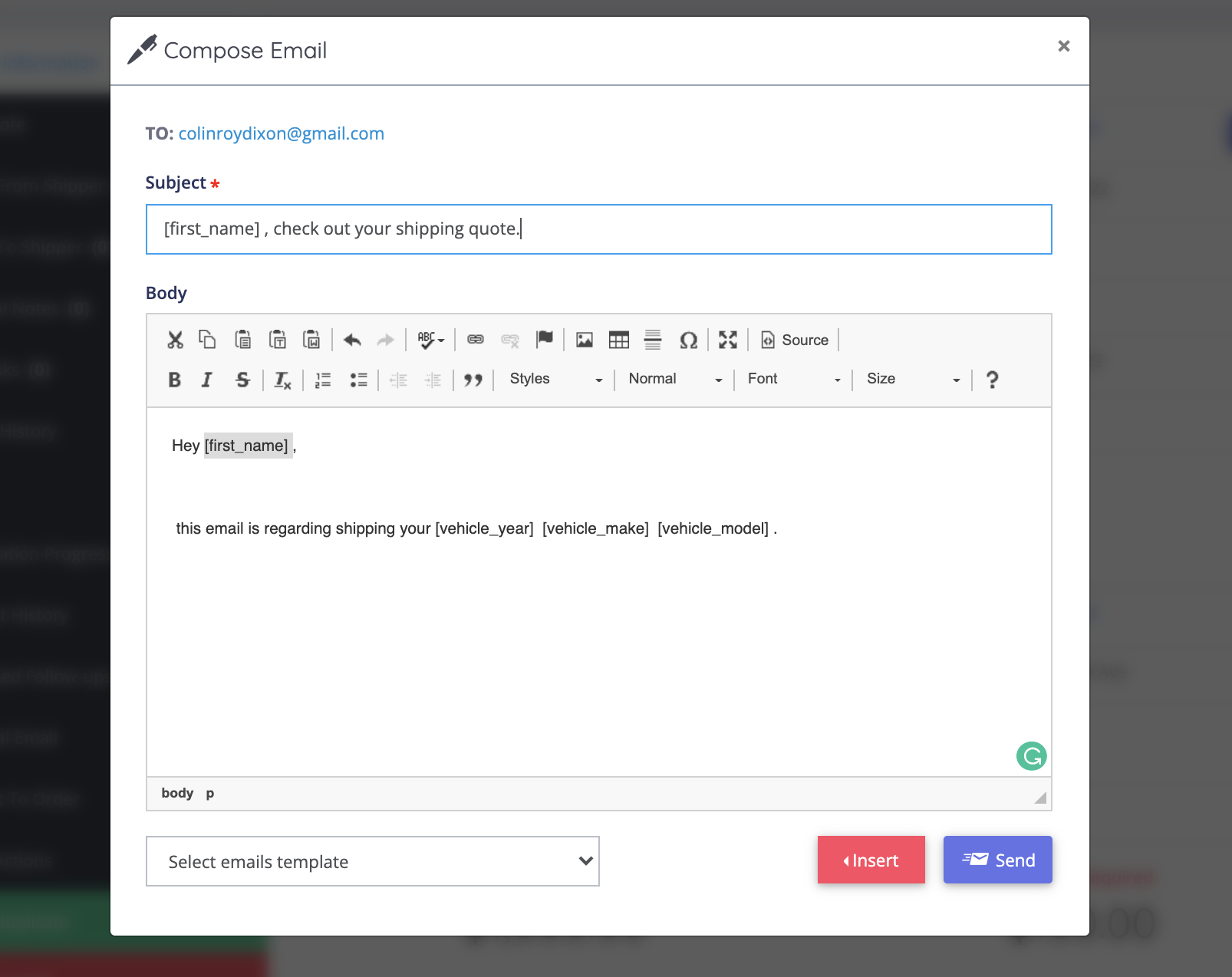
To select a template, click on the dropdown menu "Select emails template"

_______________________
Email templates save you time when you regularly send the same email messages to leads, contacts, and other business contacts. With templates, you set up standardized and personalized emails that are ready to go when you need them. Cronetic also includes a few sample templates to get you started.
Once a template is created, you can use it in three different ways:
- To send an email to a contact or lead from their record's Action menu.
- To send mass email to a group of contacts or leads, 50 at a time. (Unlock this limit by integrating a Sendgrid Account)
The number of templates you can set up will depend on your subscription plan. Take a look at our pricing page for the plan limits. (Trial plans are limited to 100 emails per day.)
To learn how to edit your email templates, click here.
_______________________

Once you've selected the template of choice, review the details and click "Send"

_______________________
*NOTE: Email templates labeled [ORDER] will only work for deals in order status. The same goes for templates labeled [QUOTES], it will only work effectively based on the status. Certain fields will not auto-populate if you select the wrong template for the deal status.
_______________________
You can preview the email's that have been sent by clicking "Contact History" then "Read Email"
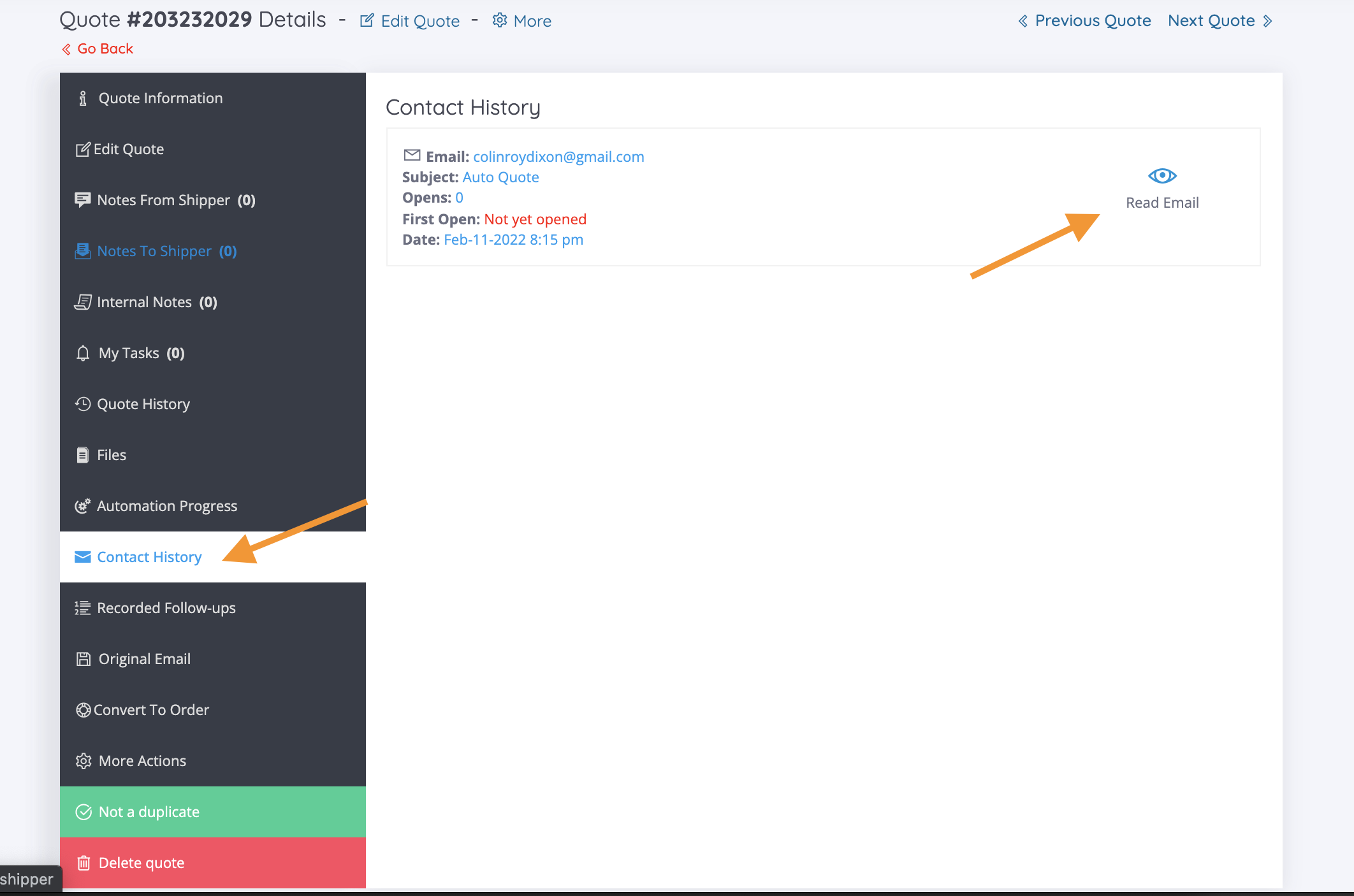
Below is a preview of Cronetic's default quote template.

The email templates are built to encourage the shipper to view a quote on a web page. The reason behind this is to encourage the shipper to self-service their reservation by providing you all the details you'd need to have a full transport booking.
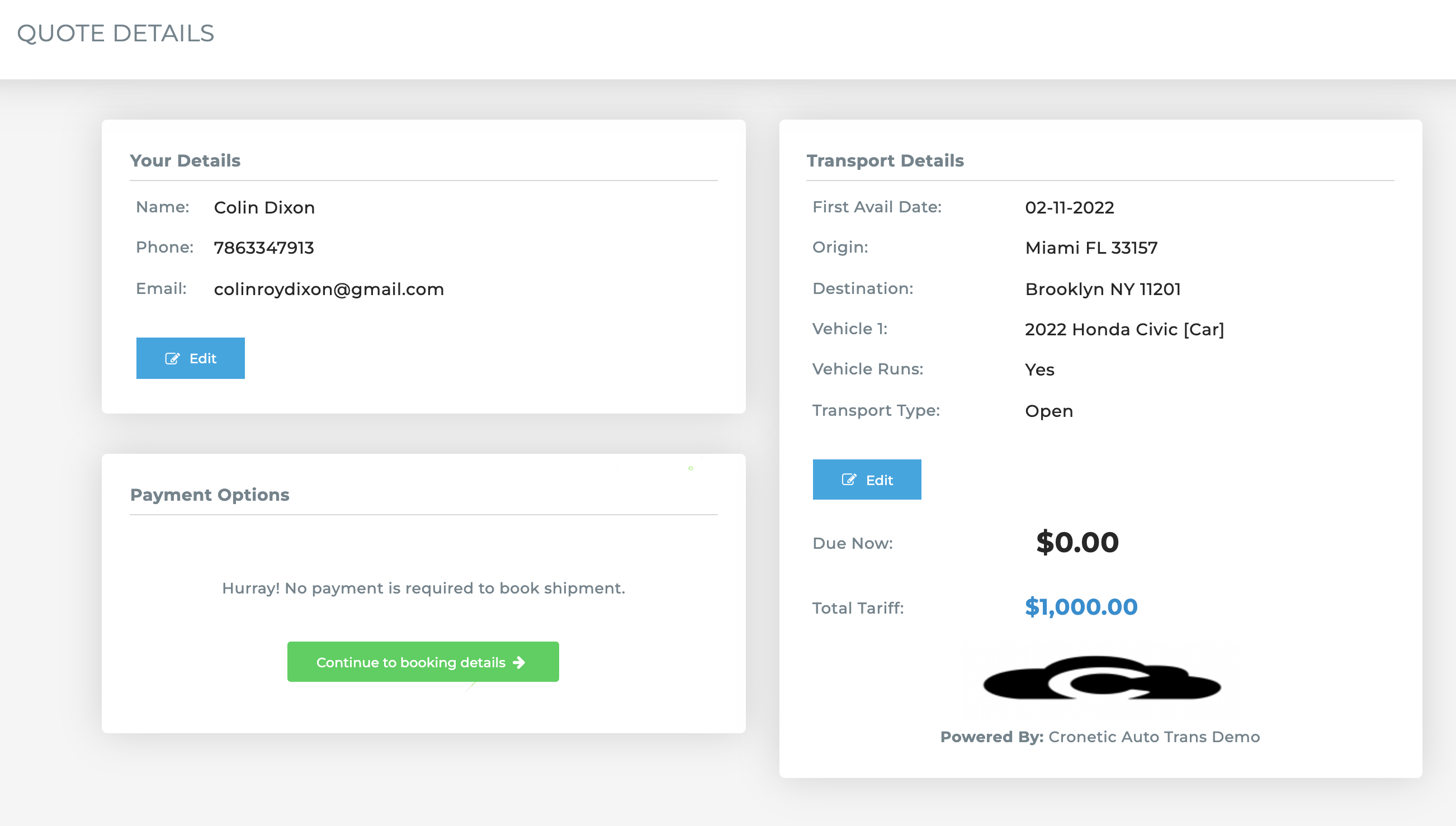
If you chose to add the pricing to the email template rather than letting Cronetic assist in capturing the information, you can customize the email templates to model your Company's workflow.
Click here to learn how to edit your email templates.
Comments
0 comments
Please sign in to leave a comment.