
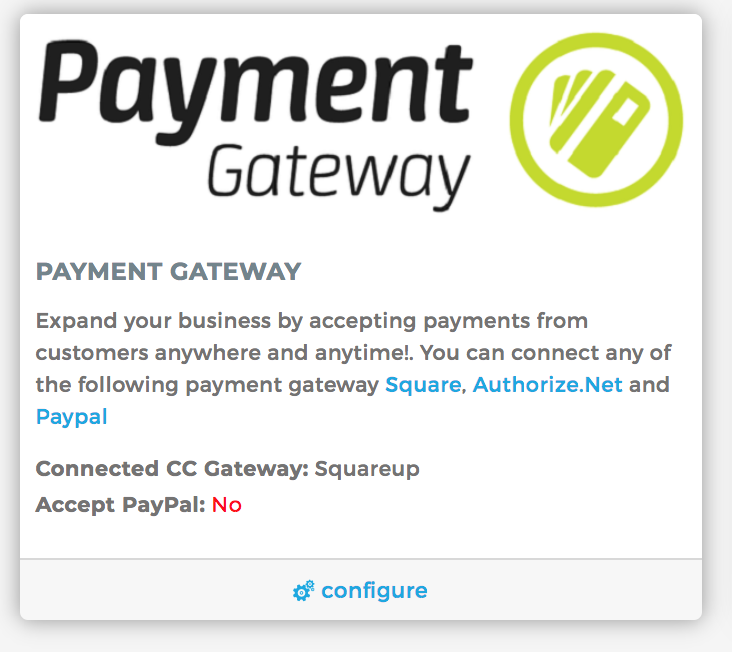
To integrate your merchant account, head to Menu Settings and click Integrations. Locate the Payment Gateway window and click Configure
SQUARE.COM
To integrate square payments, select Squareup from the dropdown. Paste the Access Token and APP ID from your Square Account.
The option to markup full payment for this merchant account, you can input the percent in the field Full Tariff Mark up Percentage.
Finally, click Activate Squareup to save your changes.

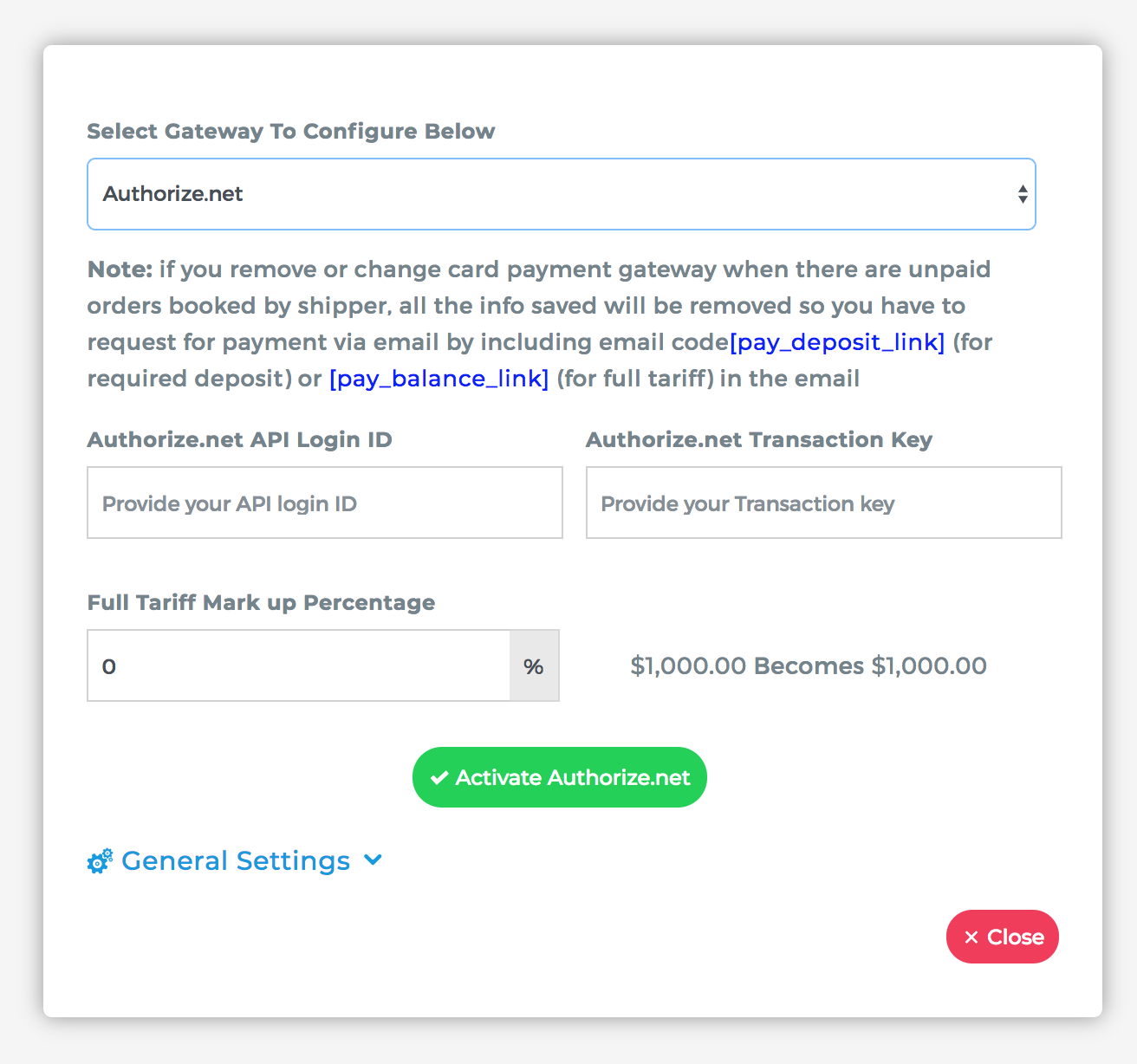
AUTHORIZE.NET
To integrate square payments, select Authorize.net from the dropdown. Paste the Access Token and APP ID from your Square Account.
The option to markup full payment for this merchant account, you can input the percent in the field Full Tariff Mark up Percentage.
Finally, click Activate Authorize.net to save your changes.
Click Here for detailed instructions.
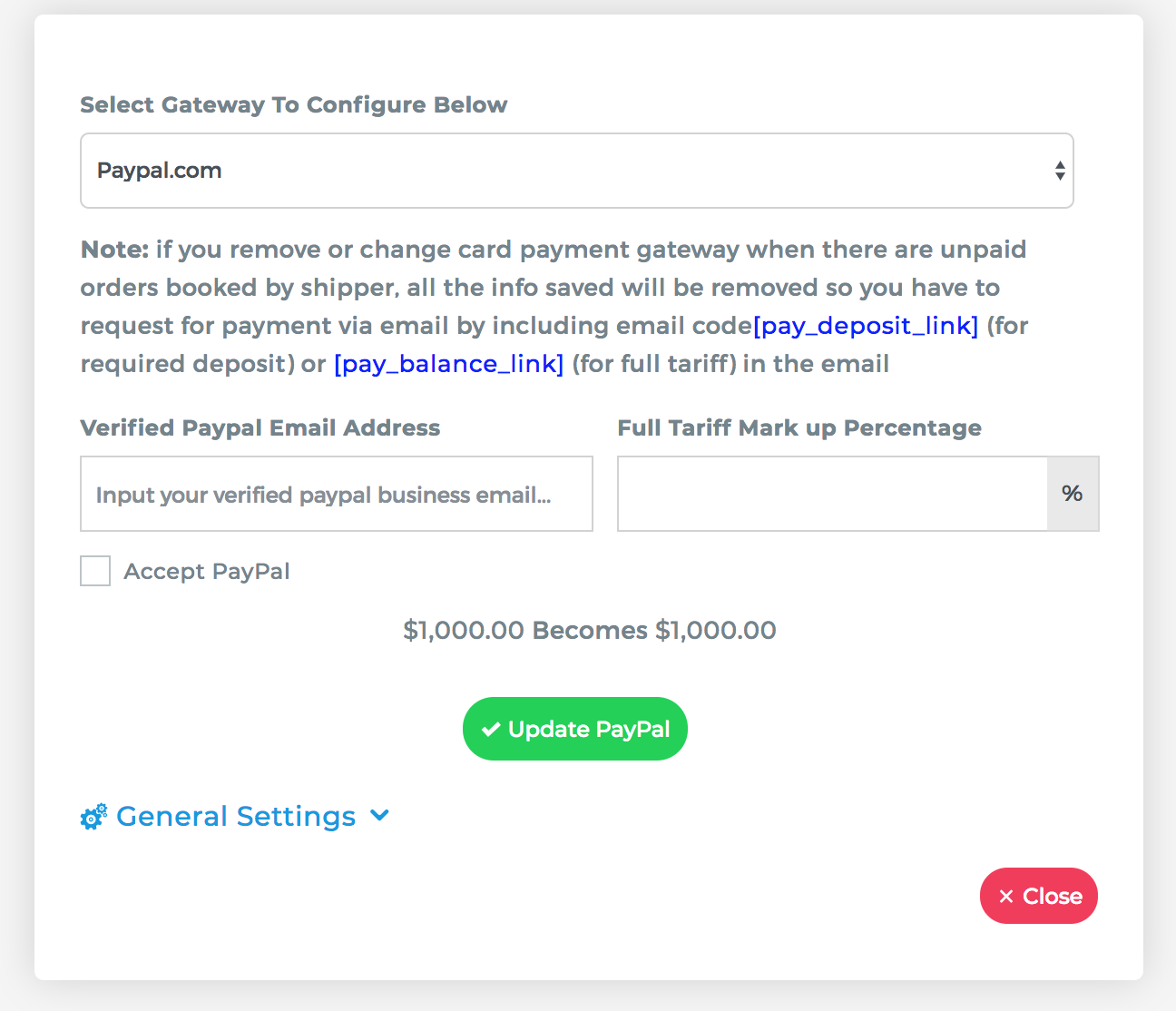
PAYPAL.COM
To integrate Paypal payments, select PAYPAL.COM from the dropdown. Paste your verified paypal email address and check "Accept Paypal"
The option to markup full payment for this merchant account, you can input the percent in the field Full Tariff Mark up Percentage.
Finally, click Update Paypal to save your changes.
General Settings
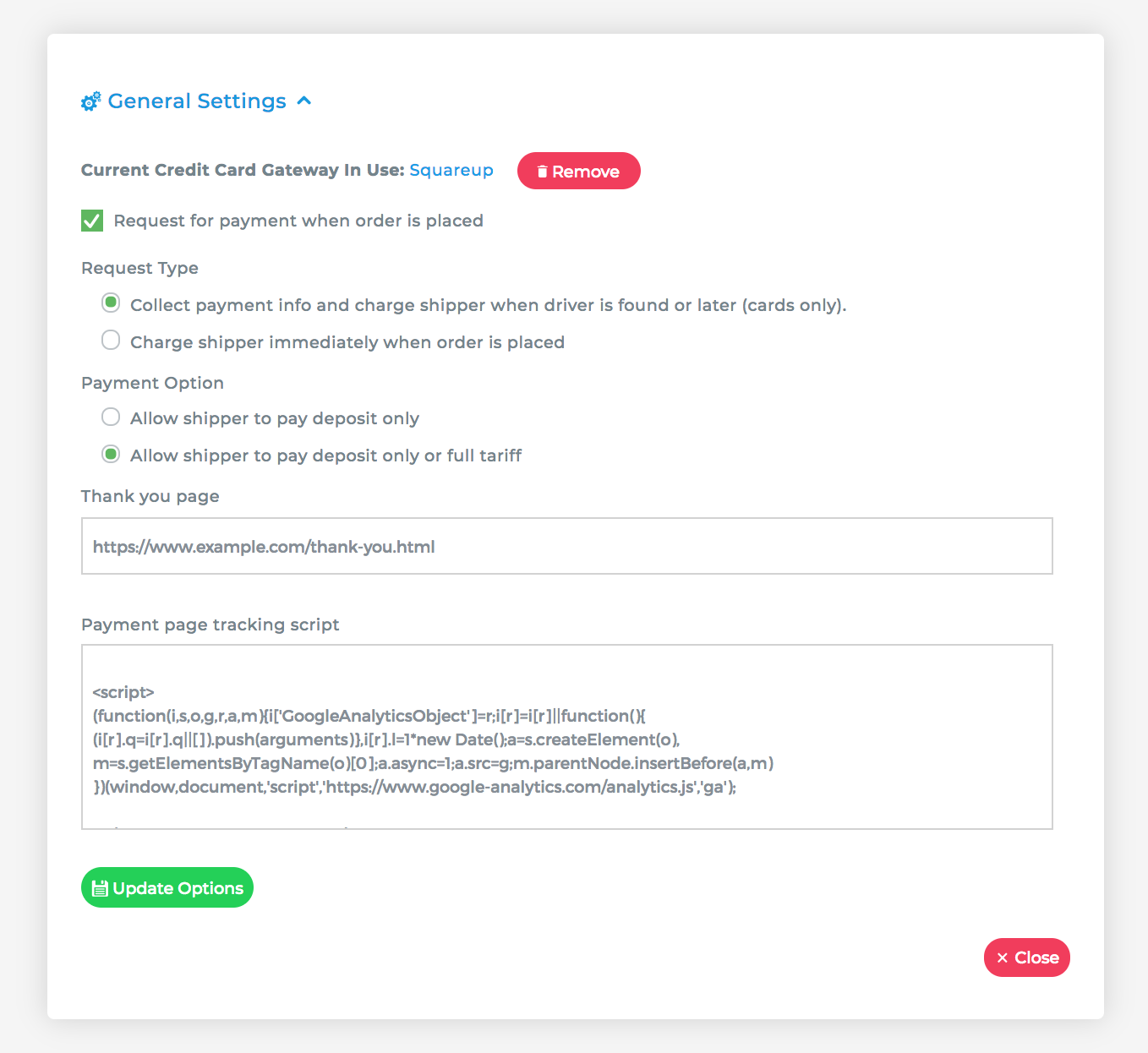
Request for Payment when order is placed
This option enables payment method capture for shippers that book online
Request Type Collect payment info and charge shipper when driver is found or later
This option collects payment method when shippers choose to book online.
Request Type Charge shipper immediately when order is placed
This option captures payment when shipper books online.
Payment Option Allow Shipper to pay Deposit Only
Only allows shippers to pay deposit only.
Payment Option Allow Shipper to pay Deposit Only or Full Tariff
Allows shippers to choose when booking online between paying deposit only or full tariff.
Thank you Page
Redirect page after payment is captured.
Payment page tracking script
Field for tracking scripts (Google Analytics, Facebook Pixel, Etc.)
Comments
0 comments
Please sign in to leave a comment.