
To edit the details of an order, you must first access the order by one of the following options.
1. Head to Menu > Order > and select the status that the quote should be in. Next, click on the Order ID and select "Edit"
2. Head to Menu > Order > and select the status that the order should be in. Utilizing the search bar, input the Order ID or the any details of the order that your shipper can provide you should you be on a live call. (If Admin, first select the Agent's View by clicking  and selecting "View All" or the shipper's account holder.
3. Head to Menu > Manage Accounts > Shippers. Utilizing the search bar, input the Order ID or the any details of the order that your shipper can provide you should you be on a live call.
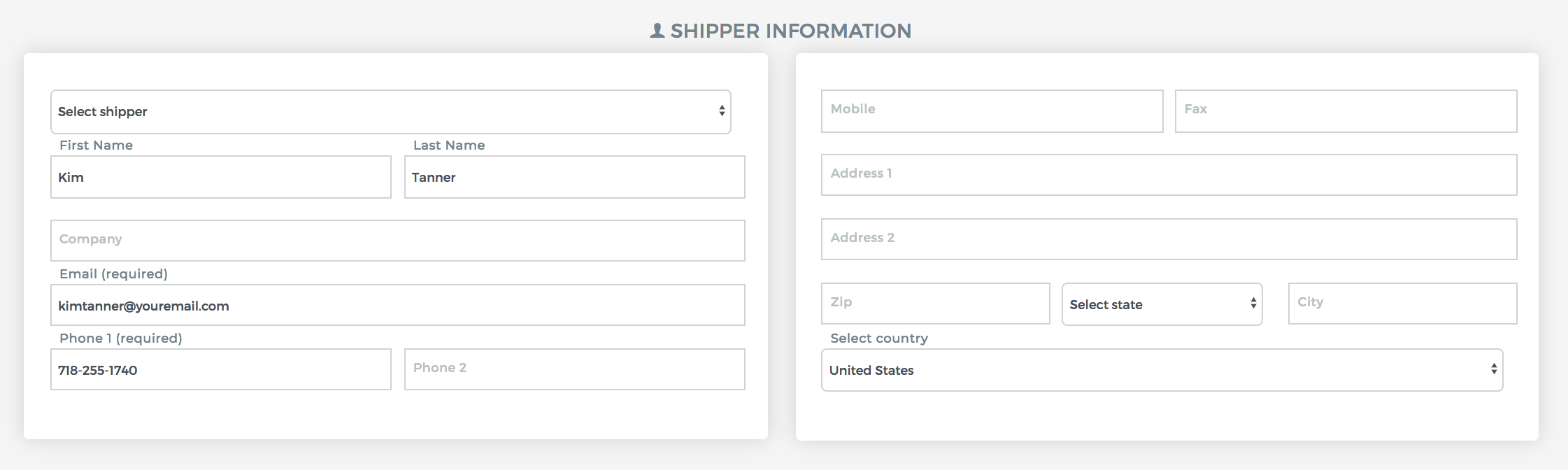
Shipper's Information
This section allows you to update the details of the shipper. You can save the company info, contact information and their main address.
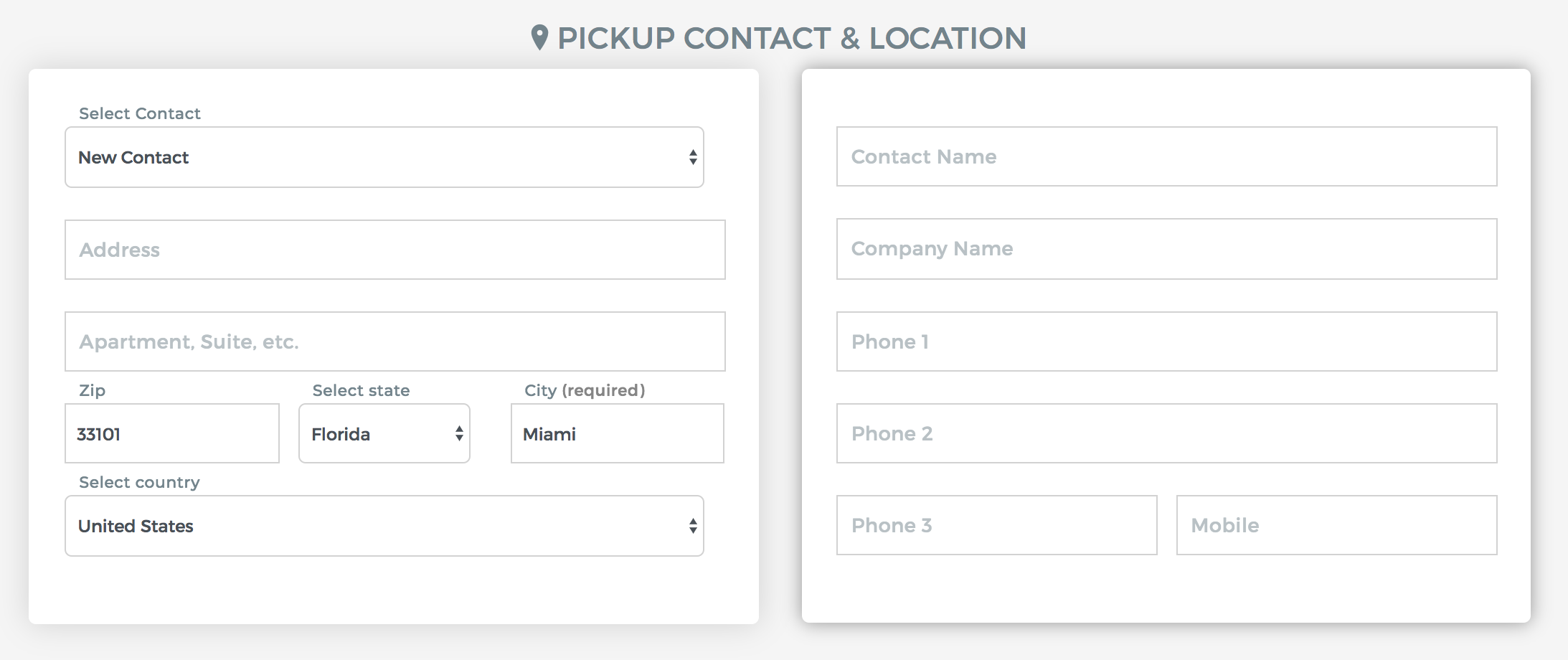
Origin and Destination
In the fields below, you can update the details of the transport request made by the shipper.

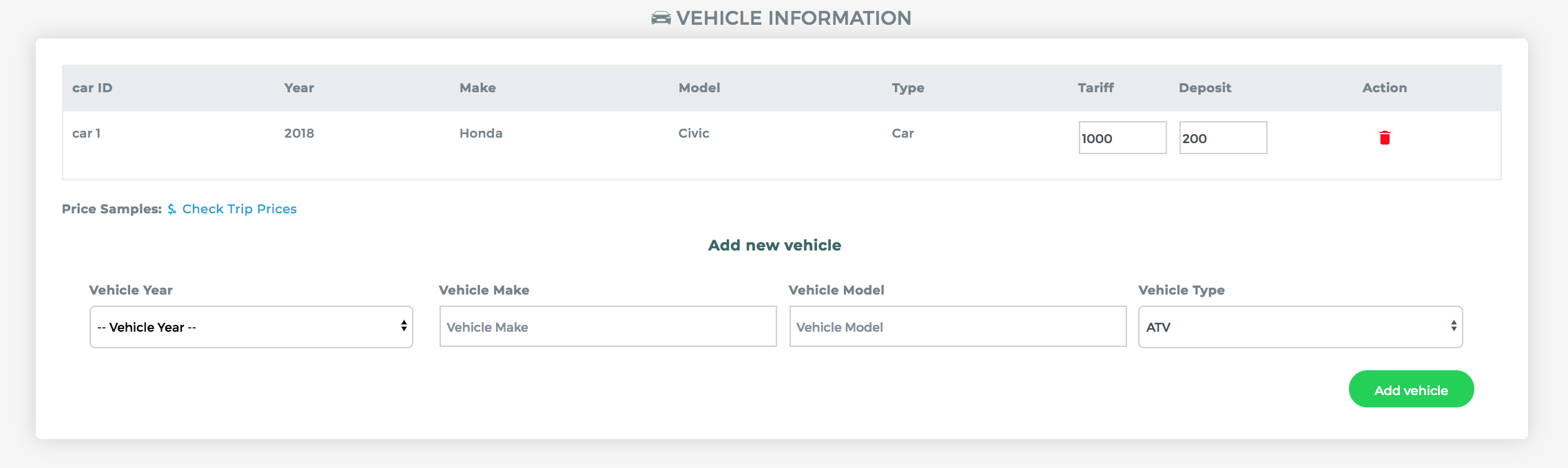
Vehicle(s) Information
In the following fields, you can update the Year, Make and Model of the vehicle.
Tariff - Total amount of the quote that includes the deposit and amount due to carrier.
Deposit - Amount required before dispatching load to the carrier.
To add more vehicles to the quote, select the specs of the vehicle in the fields below "Add new vehicle" then click "Add Vehicle". The new vehicle will show up with a new Car ID, where you then input the Tariff and required deposit for the new vehicle.
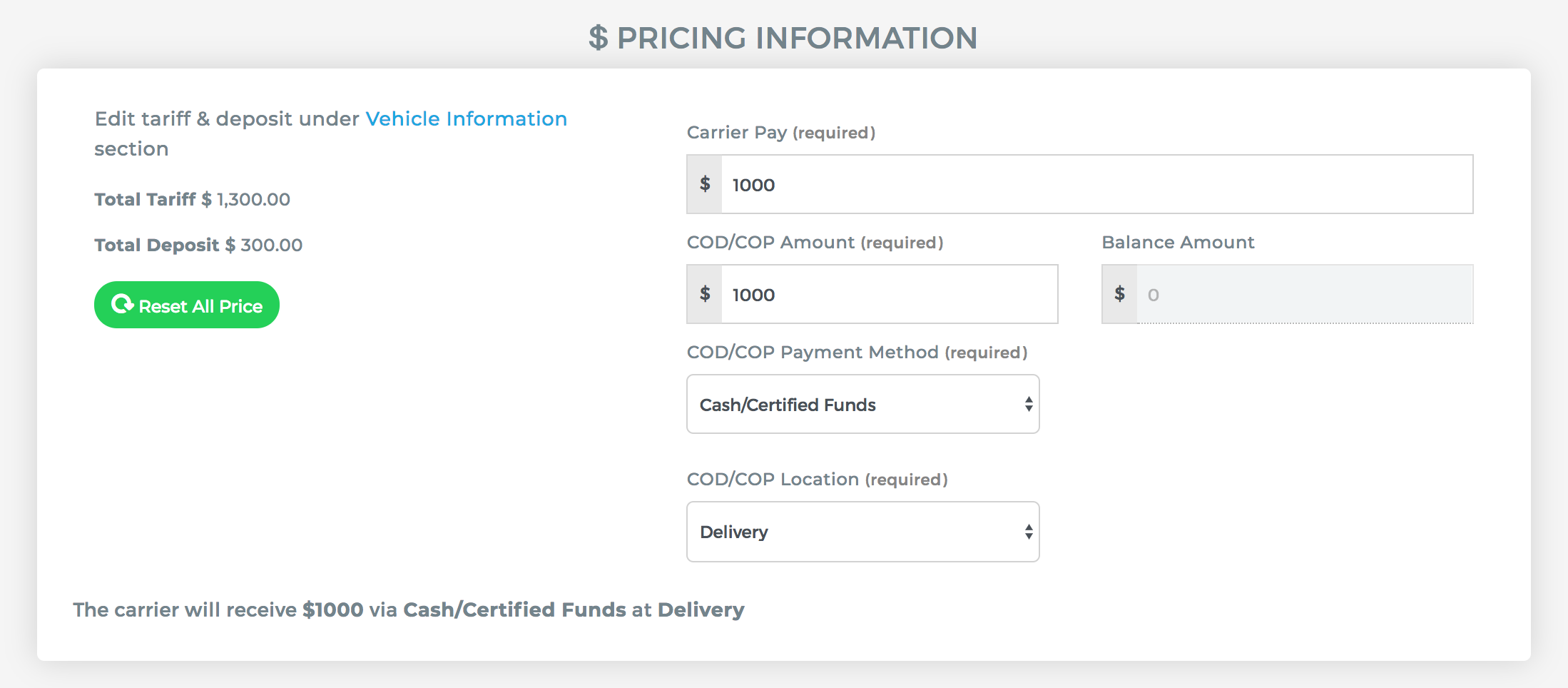
Carrier Pay
The details here determines what's owed to the carrier and Terms of Payment.
Shipping Specifics
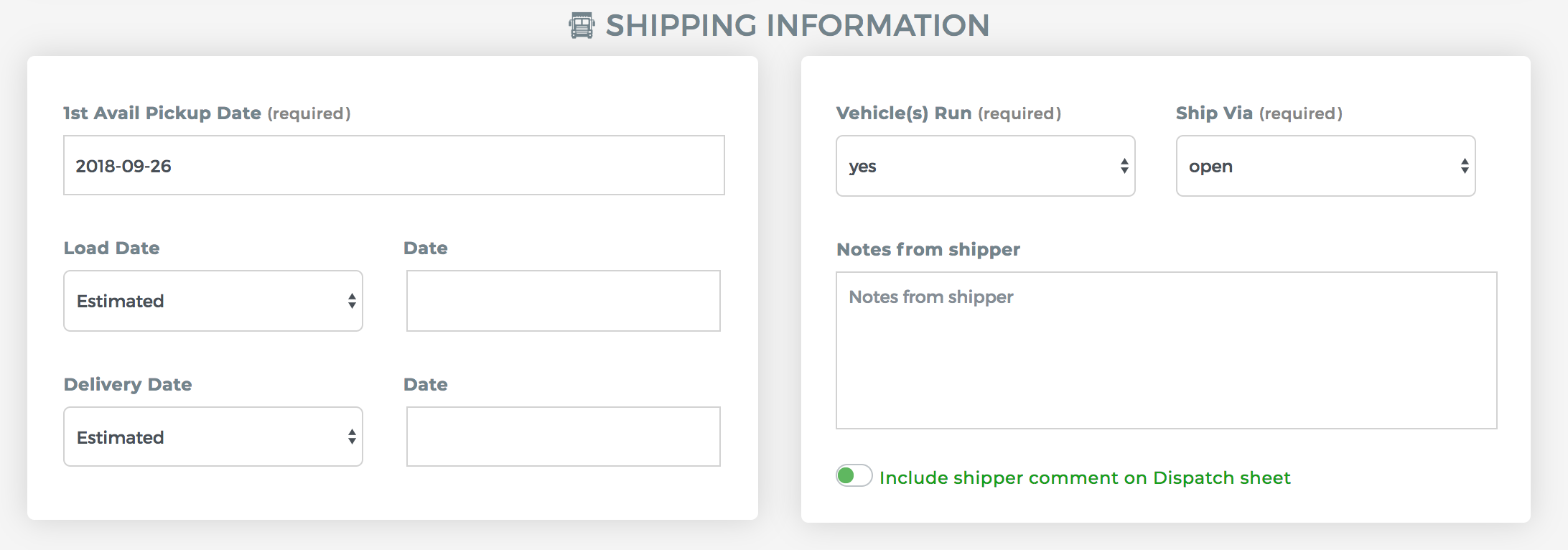
Define the load date, delivery date, if the vehicle is in operable condition and if the shipper wants the vehicle on a enclosed carrier in the fields below.
Comments
0 comments
Please sign in to leave a comment.